Batch function
Learn more about the batch workflow function within Knock's notification engine.
A batch function collects notifications that have to do with the same subject, so you can send fewer notifications to your users.
Batch functions are helpful when a recipient needs to be notified about a lot of activity happening at once, but doesn't need a notification for every single activity within the batch. Commenting is a common use case. If a user leaves ten comments in a page in fifteen minutes, you don't want to send the user ten separate notifications. You want to send them one notification about the ten comments they just received.
How batching works
#Here's a step-by-step breakdown of how a batch function works:
- When a given recipient's workflow run hits a batch step, a batch is opened for an interval of time which you define (the batch window).
- While that interval is open, the batch function aggregates any additional incoming triggers for that recipient as
activities. If a batch key is provided in your batch step, the incoming triggers for that recipient will be grouped into separate batches based on the batch key. - As subsequent workflow triggers are added to an open batch as
activities, their underlying workflow runs are terminated. - When the batch window interval closes, the workflow continues to the next step, with the data collected in the batch available as variables in the workflow run scope. By default, that continuation uses the latest published version of the workflow.
A batch function always captures events per recipient. By default, an open batch stays open across workflow versions. For more information on how updates to your workflow affect existing open batches, see setting the workflow version mode and updating workflows with batch steps.
Selecting a batch key
#When you configure an optional batch key, batched events are further grouped by that key. The batch key resolves to a value in your data payload; a configured batch key of event_type points to data.event_type. You can also use Liquid to reference variables from the workflow run scope (such as the recipient.*, actor.*, or tenant.* namespaces) to construct a key.
You can use multiple variables when constructing a batch key. For example, setting the batch key to {{data.eventType}}-{{actor.id}} would batch separately per event type and actor.
As an example, in a document editing app where a recipient is receiving notifications about activity across different pages, you can provide a batch key of page_id and the user will receive different batched notifications about each individual page.
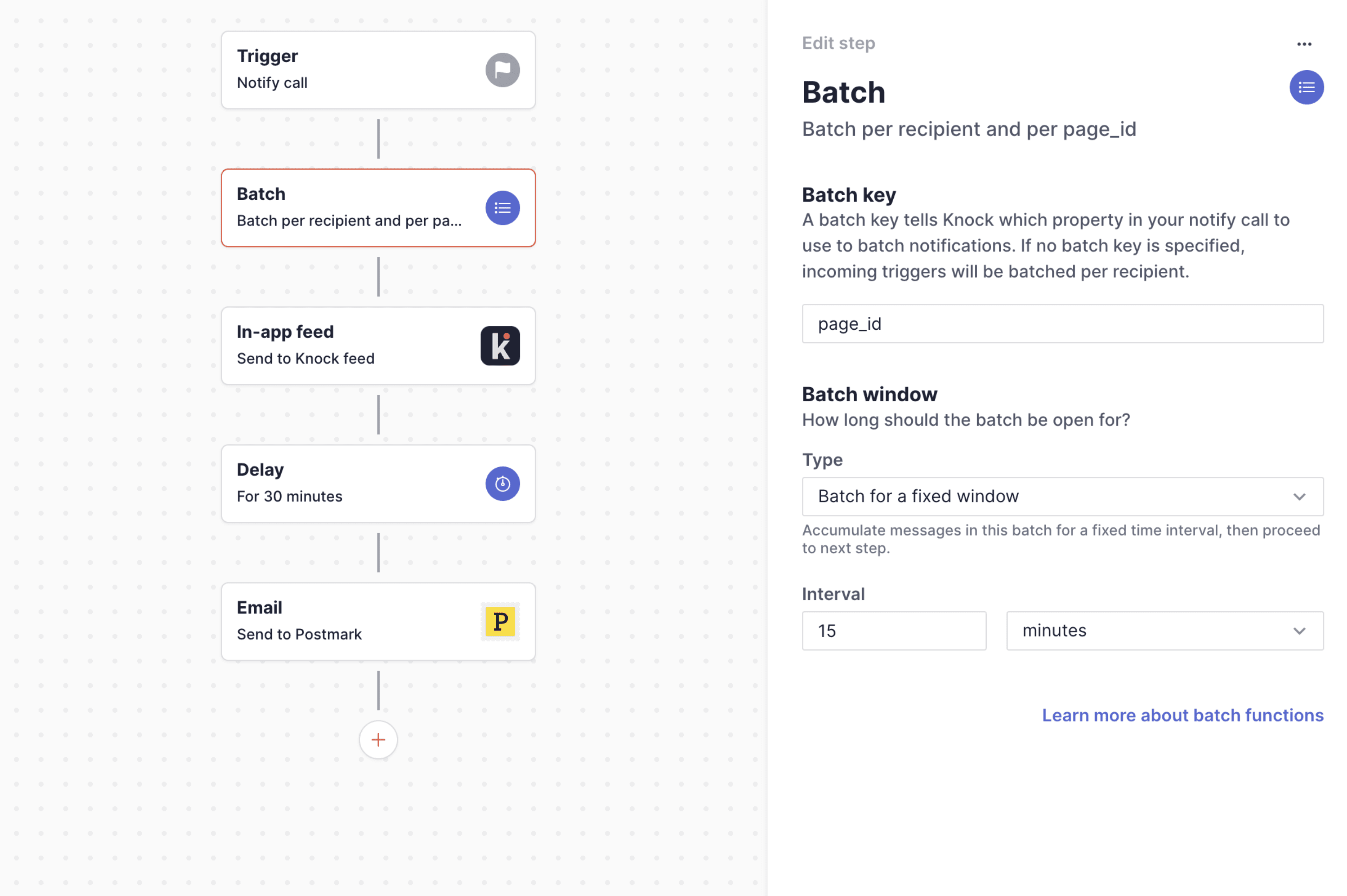
Using the batch function to batch new comment notifications by page.
Here's a detailed walkthrough of how this example might work in practice:
- You have a
new-commentworkflow that includes a batch step. - You send six trigger calls to that workflow: three about
page Aand three aboutpage B. The trigger calls are all for the same recipient Elmo. - If your batch step does not have a batch key, Elmo will receive a batched notification about six activities.
- If your batch step includes a batch key of
page_id, Elmo will receive two notifications: one for the three activities aboutpage Aand one for the three activities aboutpage B.
Setting the batch window
#The batch window determines the length of time that the batch will be open, with the window opening from the first time the batch is triggered.
Set a fixed batch window
#You can set a fixed duration batch window using the "Fixed" window option in the batch step. The window accepts a duration which can be specified in seconds, minutes, hours, or days.
The batch is opened when it is first triggered for a given recipient. The batch is closed after the fixed duration of time has elapsed.
Set a dynamic batch window using a variable
#You can also set the length of your batch windows dynamically using a variable. You can use any of the data, recipient, actor, or environment variables associated with the workflow run to retrieve your dynamic batch window.
When specifying a dynamic batch window you must provide one of the following:
- An ISO-8601 timestamp (e.g.
2022-05-04T20:34:07Z) which must be a datetime in the future - A relative duration (e.g
{ "unit": "seconds", "value": 30 }) - A window rule (e.g
{ "frequency": "daily", "hours": 9, "minutes": 30 })
A dynamic window must be available to be resolved via the key you specify on the given schema, meaning that if you specify a key of batchWindow in your data schema, your workflow trigger data must contain either an ISO-8601 timestamp, a valid duration unit, or a valid window rule.
When the key specified is missing or resolves to an invalid value, a corresponding error will be logged on the workflow run, and the batch will be skipped.
Please note: an open batch window will never be extended by a subsequent workflow trigger with a different dynamic batch window specified. Once a given batch has been opened by a workflow trigger, its window interval is immutable.
Set a relative batch window
#You can also set a batch window that will close with an offset relative to your dynamic batch window. For example, you might want to batch events up until one hour before or after an appointment.
Relative batch windows support all of the same configuration options as dynamic batch windows, but are calculated according to the additionally-configured relative offset. When the window property specified is missing or resolves to an invalid value, a corresponding error will be logged on the workflow run and the batch will be skipped.
Using a sliding batch window
#By default, all batch windows are fixed, where the closing of the batch window is determined by the first trigger that starts the batch. In some situations, you may wish to "extend" the batch window when a new trigger is received to recompute the closing time of the batch. This option is supported in the batch step as a "sliding window."
When a sliding window is enabled on a batch function, subsequent workflow triggers that are detected by the already-open batch window will add the configured default window duration onto the already-open batch window. Let's walk through an example:
- 🎛️ [Initial batch window: 1 minute]
- Trigger: the batch opens with a closing window of
now() + 1 min - ⏲️ [30 seconds pass]
- Trigger: new item added to the batch, the closing window is recomputed to be
now() + 1 min, a total of 1 minute and 30 seconds from when the batch was opened - ⏲️ [1 minute passes]
- The batch closes after 1 minute and 30 seconds
Setting a maximum batch window duration
#When using a sliding batch window, you must set an extension limit for the batch. This value represents the maximum amount of time that a batch window can remain open if it is extended by subsequent workflow triggers. This "Max window limit" option is displayed once you enable a sliding window by selecting "Extend window when new activities are received," and can be set as any duration unit.
Once configured, Knock will compute the maximum extended batch window for subsequent triggers as the time your batch was initially opened plus the maximum window duration. For example:
- 🎛️ [Initial batch window: 12 hours]
- 🎛️ [Max extension limit: 24 hours]
- Trigger: the batch opens with a closing window of
now() + 12 hrs - ⏲️ [6 hours pass]
- Trigger: new item added to the batch, the closing window is recomputed to be
now() + 12 hrs, a total of 18 hours from when the batch was opened - ⏲️ [Another 7 hours pass]
- Trigger: new item added to the batch, the closing window is recomputed to be
now() + 12 hrs, which would be a total of 25 hours. Because this exceeds the maximum extension limit, the window is set to close 24 hours after it was opened - ⏲️ [Another 3 hours pass]
- Trigger: new item added to the batch. The closing window is not recomputed because the maximum extension has already been reached
- ⏲️ [Another 8 hours pass]
- The batch closes after 24 hours
If you configure your maximum window with a value that is less than the initial window duration, subsequent batched triggers will shorten the overall window. If this new maximum duration has already elapsed, the batch window will immediately close and the workflow run will proceed.
- 🎛️ [Initial batch window: 24 hours]
- 🎛️ [Max extension limit: 12 hours]
- Trigger: the batch opens with a closing window of
now() + 24 hrs - ⏲️ [23 hours pass]
- Trigger: new item added to the batch, the closing window is recomputed to be
now() + 24 hrs, a total of 47 hours from when the batch was opened. This exceeds the configured maximum of 12 hours, so the window is set to close 12 hours after it was opened - Because 12 hours have already elapsed, the batch window closes immediately (after 23 hours have elapsed)
To avoid confusion, we recommend always choosing a max extension limit duration that is greater than your initial batch window duration.
Setting the maximum activity limit
#Optionally, you can also set a maximum limit for the number of activities allowed to be accumulated in a given batch, at anywhere between 2 and 1000 activities.
When this option is set, your batch window will close as soon as the number of activities accumulated in the batch reaches the maximum limit set, regardless of the amount of time remaining in its fixed or sliding batch window.
Setting the batch order
#Although batches will accumulate every activity added to the batch, only ten items will be returned in activities once the batch step window closes. There are two options for which ten activity objects will be returned when the batch step closes:
- The first ten (default): The ten oldest activity objects added to the batch step will be returned.
- The last ten: The ten newest activity objects added to the batch will be returned.
Note that for both settings, the activities variable will always be sorted in chronological order (oldest to most recent).
Immediately flushing the first item in a batch
#Batch steps optionally support a mode to immediately flush the first item in a batch. This mode is useful when you want to immediately notify a user about the first item in a batch, and then accumulate additional items over a window of time.
To enable this mode, you can toggle on "Immediately flush leading item" in the "Advanced settings" section of the batch step.
When this mode is enabled, the first item for an unopened batch will "open" the batch and the usual batching rules will apply. However, unlike a normal batch, the first item will not be included in the activities of the batch and will instead continue execution past the batch step. This means that when the batch window closes later on, the workflow will proceed on the "second" item's workflow run, rather than the first run that opened the batch.
If you want to branch on whether the first item in a batch was flushed or not, you can use the total_activities variable to do so. When it is set to 1, you know that you're working with the first item in a batch.
Setting the workflow version mode
#A batch step can continue on the latest workflow version or stay pinned to the version that opened the batch. New batch steps default to latest mode.
Set this in the "Advanced settings" section of the batch step with the "Continue on latest version" toggle. You can also set workflow_version_mode to latest or pinned when you manage the workflow through the Management API or CLI.
Latest (default)
#In latest mode, an open batch stays open across commits and promotions. Subsequent triggers for the same recipient (and batch key, if you set one) join that batch, even after you promote a new version of the workflow.
When the window closes, Knock continues the workflow on the latest published version that still includes this batch step with latest mode enabled. Template and step changes you committed while the batch was open are used for that continuation.
Use latest mode for digest-style batches so a new workflow version does not open a second batch or send a duplicate notification.
Pinned
#Pinned mode ties the batch to the workflow version that opened it. Committing a new version of the workflow opens a new batch for the same recipient. When a window closes, that batch continues on the version that opened it.
Pinned is an advanced option. Use it only when you need a separate batch for each workflow version. For long-running batches, a new workflow version can close two batches around the same time and send two notifications.
Working with batches in your templates
#Another important aspect of batch functions is that they generate state that can be used in your templates. Let's continue the commenting example we used above.
In this scenario, we'll want different copy in our notification for when a batch includes one item ("Jane left a comment") v. when a batch includes more than one item ("Jane left n comments").
We can address use cases like this by referencing the total_activities variable within our workflow.
Here's an example of a message template that uses this variable to determine what type of copy to use:
Here's a list of the variables that you can use to work with batch-related state.
-
total_activities. The number of activities included within the batch. (An example: In the notification "Dennis Nedry left 8 comments for you", thetotal_activitiescount equals eight). -
total_actors. The number of unique actors that triggered activities included within the batch. (An example: In the notification "Dennis Nedry and two others left comments for you", thetotal_actorscount equals three, Dennis plus the two others you mentioned in the notification). -
activities. A list of up to ten of the activity objects included within the batch, where each activity equals the state sent across in your trigger call. Theactivitiesvariable lists the first or last ten activity objects added to the batch (configurable by setting the batch order). Each activity includes anydataproperties you sent along in the trigger call, as well as any user properties for your actor and recipient(s). You can use the activities variable to create templates like this: -
actors. A list of up to ten of the unique actors included within the batch, where each actor is a user object with the properties available on your Knock user schema. Theactorsvariable lists the first or last ten actors added to the batch.
Setting the batch render limit (beyond 10)
#By default, up to ten items will be returned in activities and actors variables inside your templates after the batch window closes.
On the Enterprise plan, you can configure the maximum number of activities and actors to be rendered in your templates beyond the default limit of 10, to any number between 2 and 100.
The data payload
#When a workflow includes a batch step, the data payload that is available to your message templates after the batch window closes (and via the API, wherever trigger data is returned alongside a message or used as a filter) will be combined and truncated according to the following rules:
- Nested data structures (objects and arrays) are removed. The available
datawill be a JSON object with a single level of key-value pairs. - Supported values are the JSON scalars string, number, boolean, and
null. - String values are limited to 256 characters in length. Strings that exceed this limit are truncated to the maximum.
- When payloads are combined, they are merged in the order in which they are received. Any keys that are used in multiple trigger calls will have the value of the most-recent trigger's
datapayload.
For this reason, we recommend referencing the activities array to access data from a specific trigger event when your workflow includes a batch step.
Updating workflows with batch steps
#What happens when you commit and promote a new version of a workflow with an open batch depends on the workflow version mode of your batch step.
In latest mode (the default for new batch steps), the open batch stays open. Subsequent triggers join it, and when the window closes Knock continues the workflow on the latest published version. Template and step changes you committed while the batch was open are used for that continuation.
In pinned mode, the batch stays tied to the workflow version that opened it. Promoting an updated version (including a change to update a batch step's workflow version mode from pinned to latest) opens a new batch the next time the workflow is triggered. Existing batches remain open until their duration elapses, even though they will not accumulate additional events from the new version. For long-running batches that always close at a specific interval (like "every Monday at 9:00 a.m."), that can send two notifications in close succession.
To prevent a workflow from sending notifications or accumulating additional events while you work on an update, you can set the workflow's status to Inactive. While a workflow remains in the inactive state, new events will not be batched and any currently-open batch windows that close will not proceed to the next workflow step; their runs will instead be terminated and no additional messages will be generated.
- A workflow's status is an environment-specific setting. Be sure to target your production environment if you decide to use this control.
- Toggling a workflow's status does not automatically cancel any currently-open batch windows. Your workflow should remain in the
Inactivestate until all open batch windows have closed, otherwise your batches will proceed as normal once their window durations have elapsed. - While the workflow is
Inactivein Production, promote your changes. After your open batch windows close and outstanding workflows have terminated, setting the workflow back toActivewill begin batching incoming events again and these workflow runs will proceed with the newly-published workflow version.
Using workflow cancellation with batches
#If you want to remove an item from a batch (example: a user deletes a comment), you can use our workflow cancellation API to cancel a batched item, thereby removing it from the batch.
If a batch is empty when its window closes because all of its activities were canceled, no subsequent channel steps in the workflow will generate messages.
Canceling runs after a batch closes
#If you need to cancel an in-flight workflow run after its batch window has closed and it has proceeded to the next workflow step, you must use the cancellation_key from the workflow trigger which originally opened the batch window. The original key can be used to cancel the run even if it was previously used to remove the initial activity from the batch while it was still open.
After a batch window has closed, specific activities are no longer eligible to be removed from a batch or otherwise canceled. Because each activity's individual workflow run is terminated when it is added to an open batch, any cancellation_key which is not associated with the original workflow run will have no effect.
Keep this behavior in mind when deciding whether to include delay steps after a batch step in your workflows.